What is TV Box?
A Ugoos TV Box is a high-performance Android device that turns a regular TV into a smart entertainment hub. Think of it as a powerful alternative to mainstream streaming sticks, designed for tech enthusiasts who want more control, better hardware, and support for high-end audio and video formats.
How it works: You plug it into your TV's HDMI port, connect it to your Wi-Fi, and it runs an operating system that lets you install and use streaming apps.
Who needs one?
- People with older, non-smart TVs who want streaming capabilities
- People whose smart TV's built-in software is slow or outdated
- Anyone wanting a better app selection or faster interface than their TV provides
In short, a TV Box is essentially a mini-computer dedicated to turning any TV into a full-featured smart entertainment hub.
Here are the main things you need to know in order to start using TV Box:
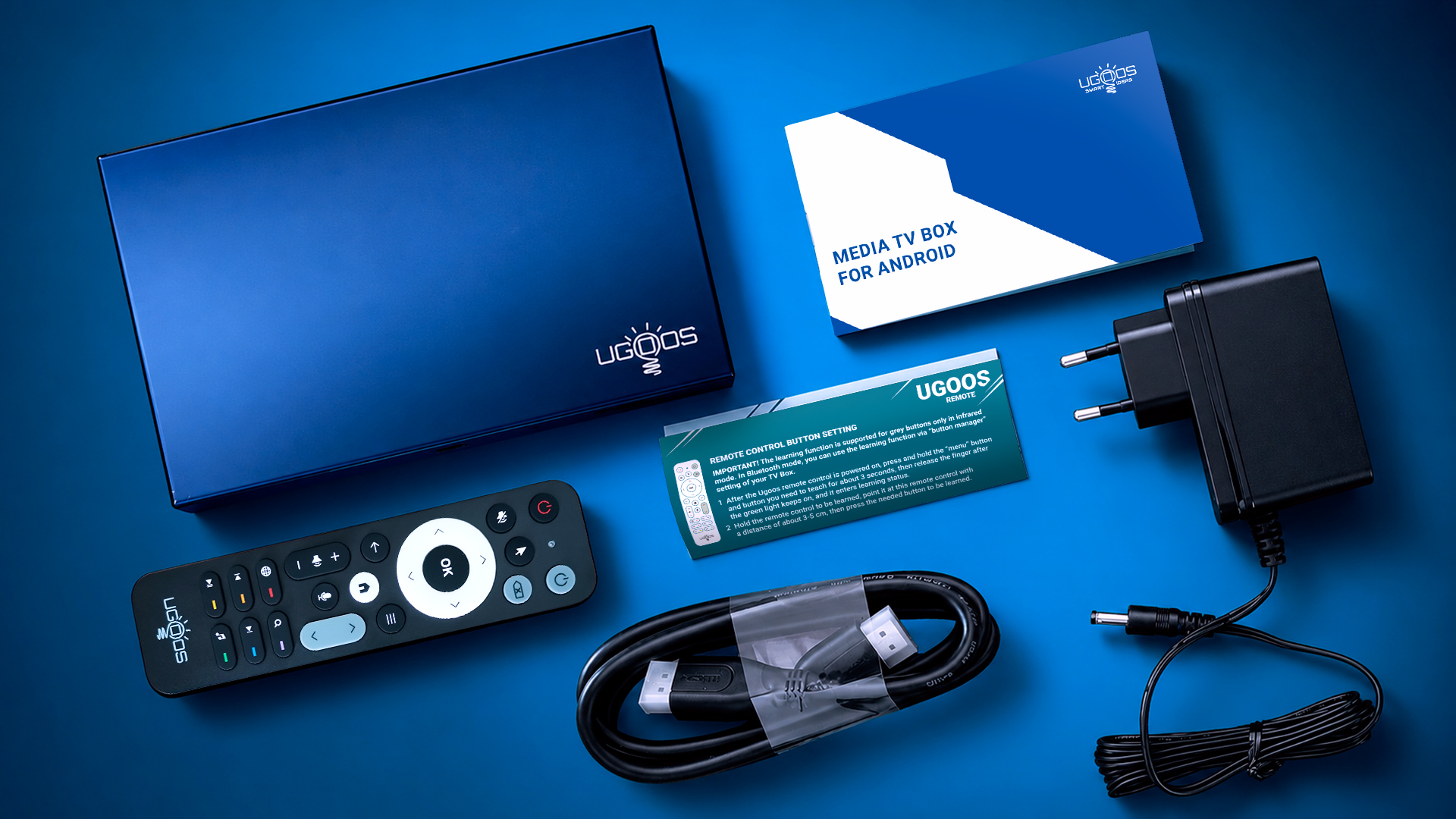
Usually, inside a Ugoos TV Box you'll find five items: a box itself, a remote control, an HDMI cable, a power adapter, and an English user manual.
When you've opened it:
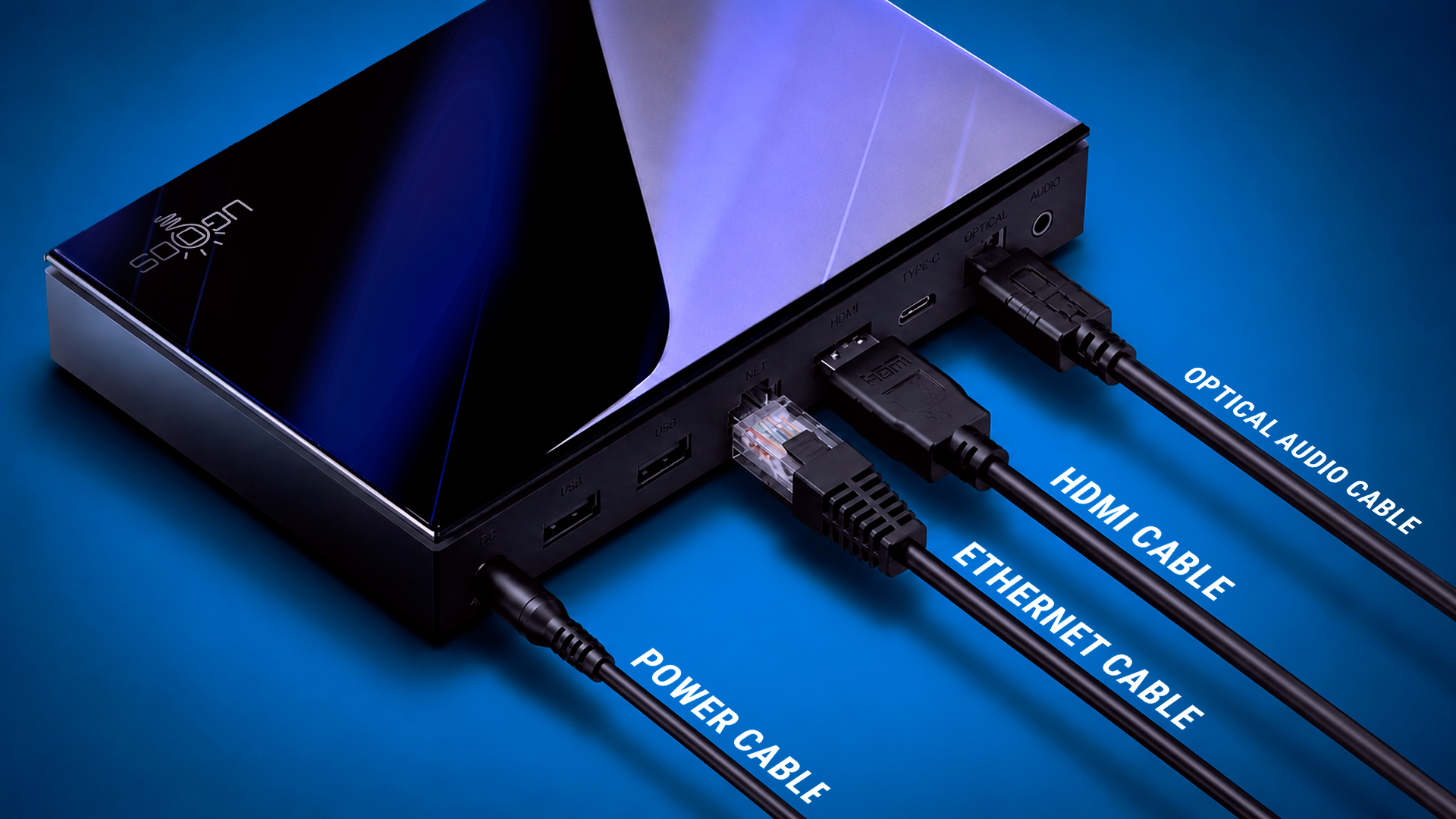
- Connect to your TV. Plug one end of the included HDMI cable into the HDMI OUT port on the Box, and the other end into a free HDMI input on your TV. Make a note of which input you used (HDMI 1, HDMI 2, etc.).
- Connect power. Plug the DC power adapter into the DC IN port on the box, then into a wall outlet. The device should automatically boot up.
- (Optional) Connect Ethernet. For a more stable connection than Wi-Fi, run an Ethernet cable from your router to the NET (RJ45) port. Skip this if you'd rather use the built-in Wi-Fi. Note the box doesn't come with an Ethernet cable, so you'd need your own.
- (Optional) Connect peripherals. You can plug a USB keyboard, mouse, or external drive into the USB 3.0 or USB 2.0 ports if you want.
- Switch your TV to the right input. Using your TV remote, select the HDMI input you plugged into in step 1. You should see the Android boot logo, then the home screen.
First start:
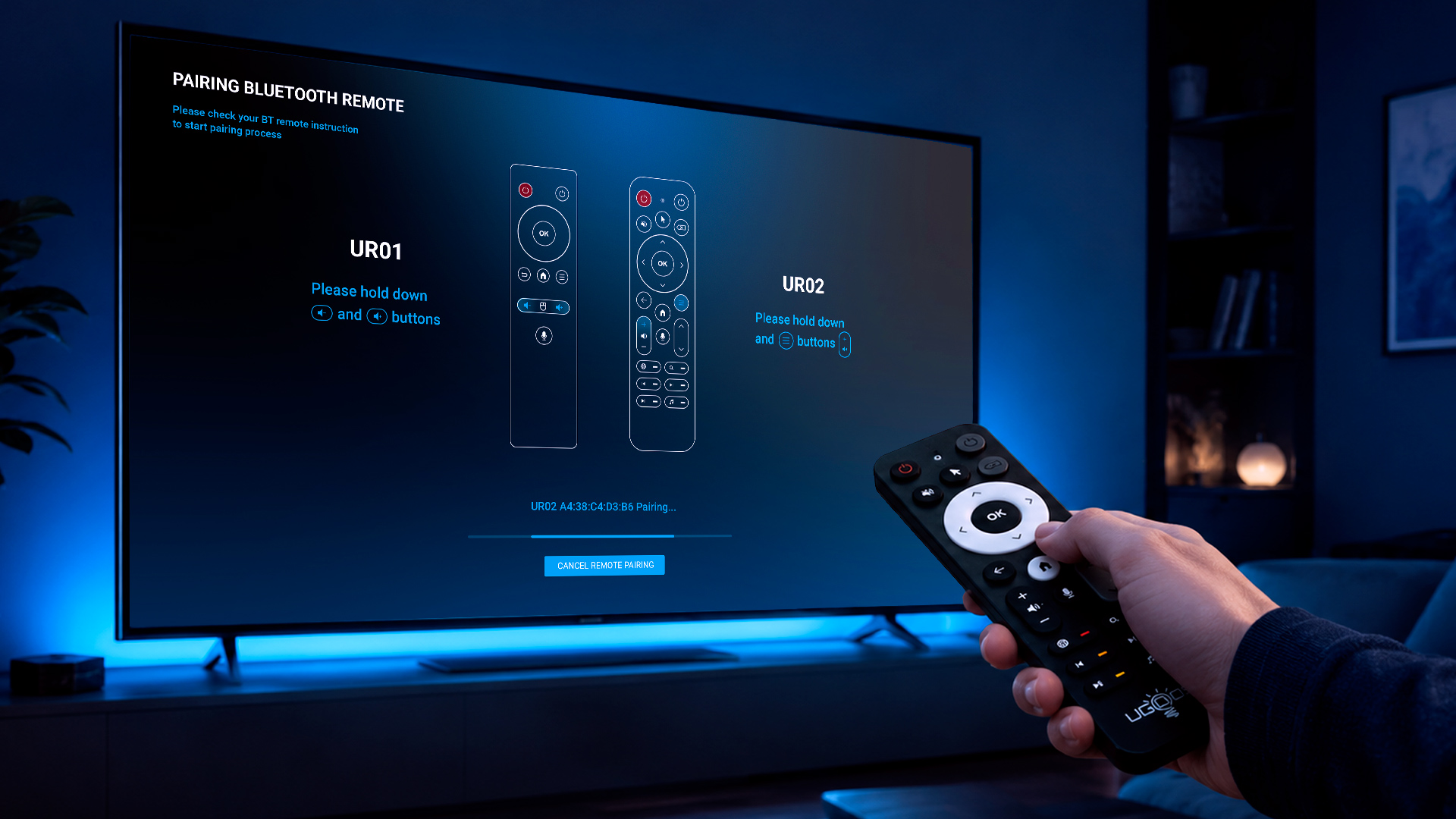
First, get the remote ready. Open the battery compartment on the back of the remote and insert the batteries (usually 2x AAA), making sure the + and − ends match the markings inside. Point it at the box to navigate.
If you have Bluetooth remote (like UR-02 or others)
Then work through the on-screen setup wizard:
- Pair the remote (Bluetooth). Early in setup you may be prompted to pair the RC over Bluetooth. This usually means holding two buttons together (often Home + Back, or following the exact on-screen prompt) until the remote's indicator light blinks and the box confirms the connection. Pairing matters because the standard Bluetooth remotes (like UR-02) features voice control and gyroscope functionality for intuitive navigation — these only work over Bluetooth, not the basic infrared mode.
- Select your language. Choose your preferred display language. The SK1 supports many languages including English, Spanish, French, Italian, and others, so pick whichever you want the menus to appear in.
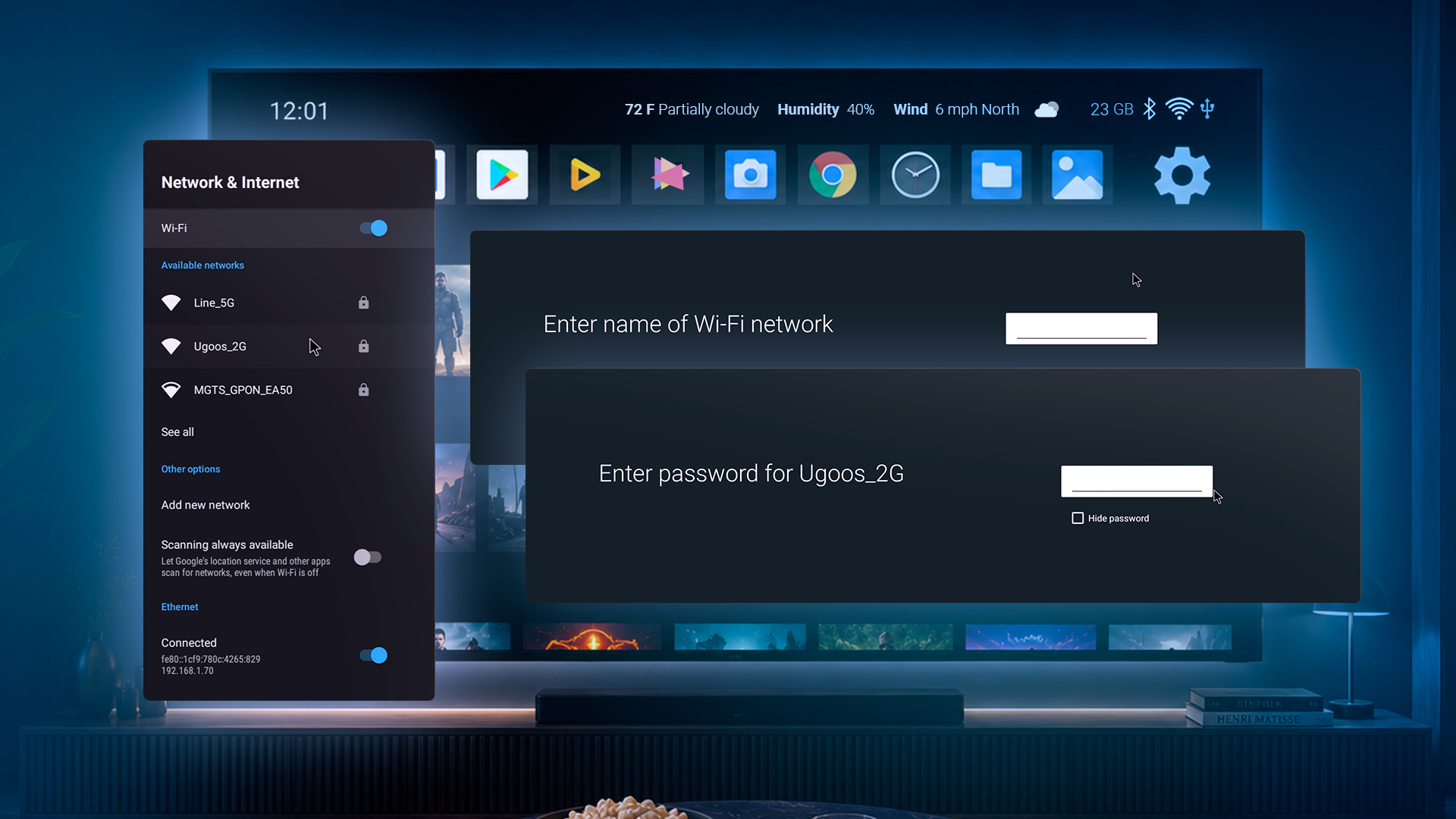
- Connect to the internet. If you plugged in an Ethernet cable, the box will typically detect the wired connection automatically and you can skip Wi-Fi. Otherwise, select your Wi-Fi network from the list and enter the password. The SK1 has Wi-Fi 6, so connect to your 5 GHz (or 6 GHz) band where possible for the best speed. A signal of at least a couple of bars is recommended for stable streaming.
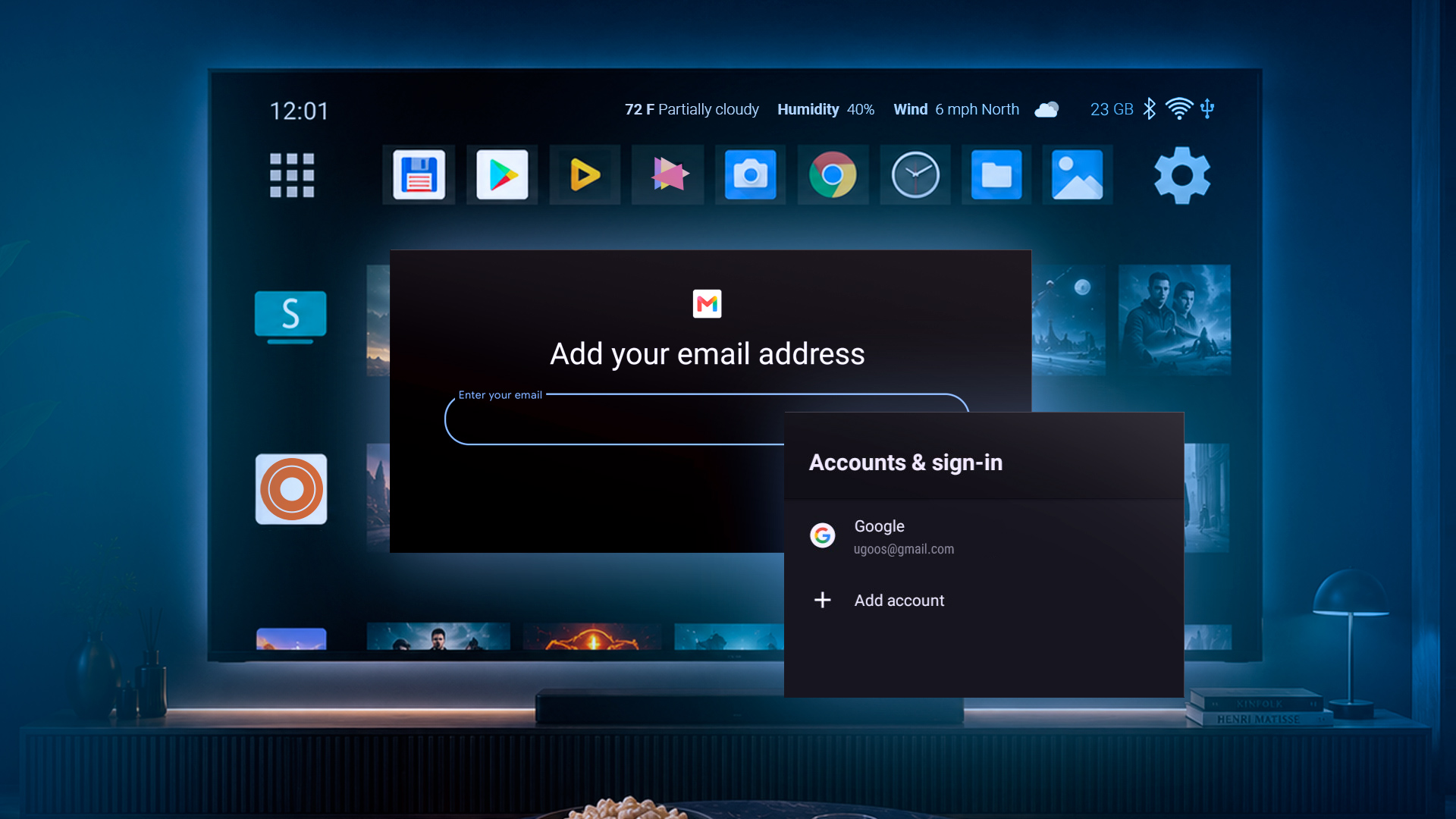
- Sign in to your Google account. Entering your Google credentials links the box to the Play Store and Google services so you can download apps, and it syncs your preferences. You can type it in on-screen, or in some setups sign in using your phone. This step is optional if you'd rather skip it, but without it you won't have direct Play Store access. (Tip: type your password yourself rather than having me or anything else enter it — keep your credentials private.)
Key Ugoos features:
Auto Frame Rate (AFR). The firmware automatically matches your TV's refresh rate to the source content (e.g. 23.976Hz for movies), removing judder. Ugoos's signature feature, prized by Kodi and Plex users.
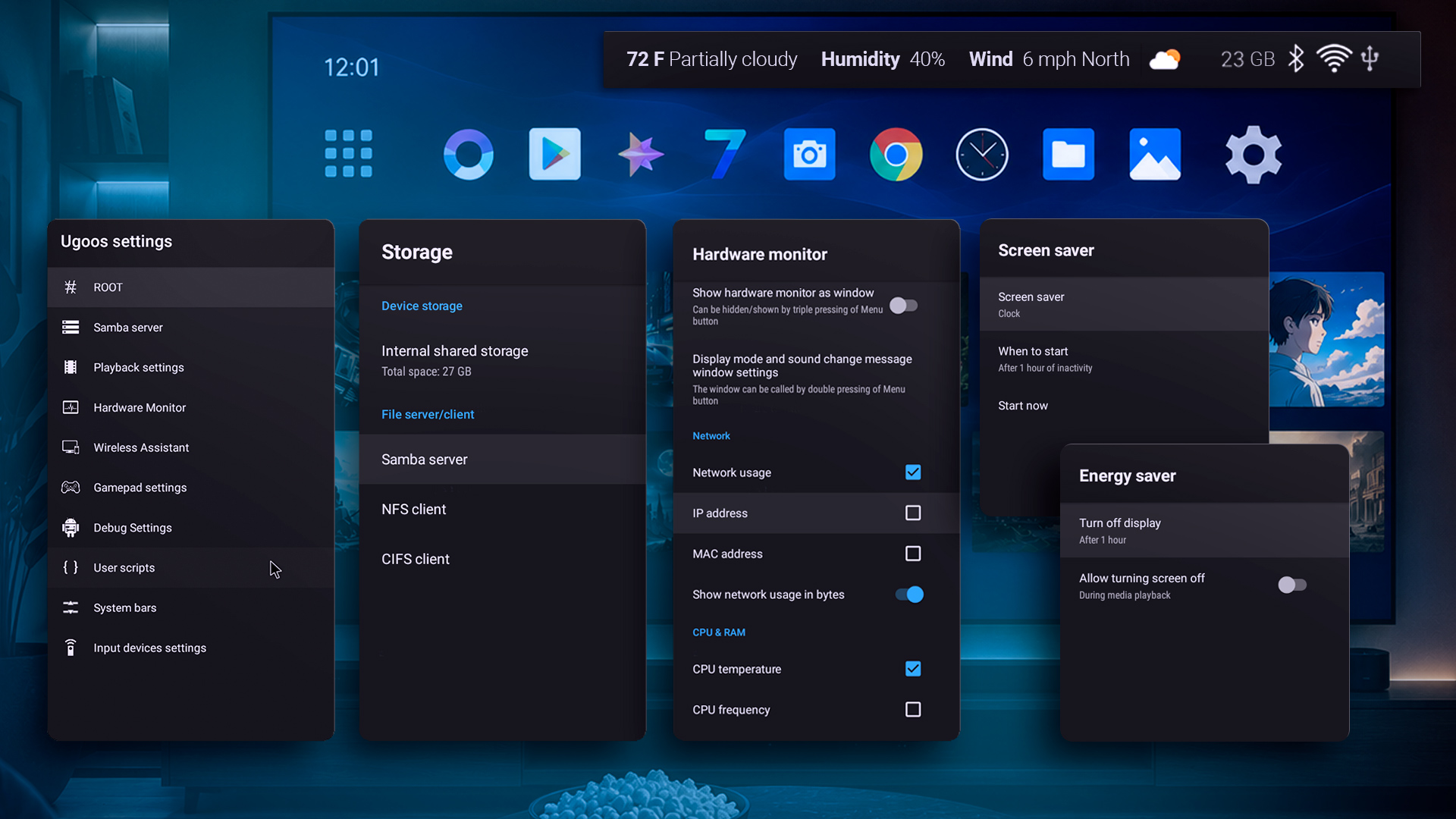
Ugoos Custom Settings menu. A deep panel for HDMI output, audio passthrough, deinterlacing, and hardware acceleration. The level of control home-theater enthusiasts love.
Full audio passthrough. Sends the raw bitstream to your receiver without down-mixing, covering all Dolby and DTS formats including Atmos and DTS:X.
Bluetooth remote (air-mouse + voice). A standard accessory with easy pairing, air-mouse, and voice search. Your SK1's UR-02 has gyro and voice control.
Root access. A built-in Root Access toggle in developer settings, keeping Play Store, Netflix, and YouTube working — no bootloader unlocking or custom recovery needed.
Regular OTA updates. Over-the-air security patches, driver/codec improvements, and bug fixes via settings — a level of support rare in this market.
Recovery & advanced boot. Dual bootloader and recovery mode for cache wipes or factory resets, plus sideloading and multiboot for power users.
Clean, bloatware-free interface. Consistently praised for a clean interface, unlike ad-heavy budget boxes.
Note: features vary by model.
Here are the key Ugoos networking and power-user features:
Samba server. Turns the box into a file server so other devices can browse its storage. It lets you share files among different OS devices on your local network. Enable it in Settings → Ugoos Settings → Samba Server.
CIFS / NFS clients. The reverse — they pull in shares from a PC or NAS. They make shared Windows folders visible in Android, like a mirror of the actual folder. Add one by entering the device's IP, folder path, and login if needed. Great for streaming from a NAS without copying anything.
Hardware Monitor. A real-time overlay showing temperature, CPU clock speed and load, RAM load, and network speed in the upper bar, with an optional draggable window. Handy for spotting throttling or network bottlenecks.
User scripts (no root). Run your own scripts without rooting — it creates an "init.d" folder that runs them on each reboot.
ADB / debug + Log Viewer. Connect via ADB over USB or Wi-Fi for diagnostics, and gather log files to troubleshoot problems.
Gamepad key-mapping. A Ugoos feature for gamers to remap controller buttons to your taste.
Extras. System bar customization (hide/recolor bars), a custom NTP server, and built-in bug reporting.
Check those available in your TV Box, run: Settings → Ugoos Settings.